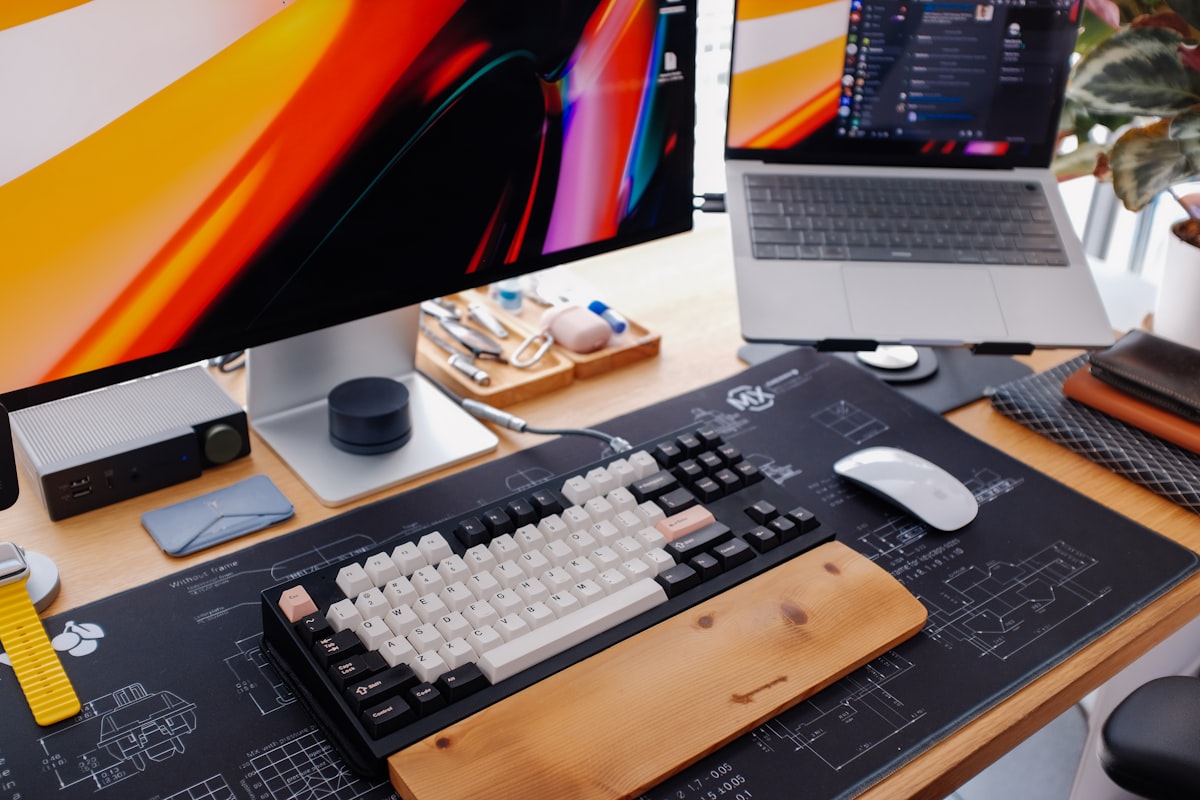
How should a left-handed person set up their desk? Place the mouse on the left, position the monitor slightly right of center, and light from the right to prevent hand shadows when writing.
These three changes solve the most common ergonomic problems left-handers face at right-handed workstations.
Most office furniture, accessories, and workspace layouts assume a right-handed user. The mouse sits on the right, the phone cradle goes on the left, the keyboard's number pad extends to the right, and desk lamps are positioned on the left. For the roughly 10 percent of workers who are left-handed, this default layout creates daily friction: reaching across the body for the mouse, casting shadows over handwritten notes, and bumping elbows against desk partitions placed on the wrong side. This guide covers every element of a left-handed workspace, from monitor placement to ergonomic accessories, for both home offices and corporate environments.
Mouse placement and selection
The mouse is the single most impactful item to reposition. Right-handed desk setups place the mouse to the right of the keyboard, which forces a left-hander to either use their non-dominant hand or reach awkwardly across the desk.
Position the mouse on the left
Move the mouse to the left side of the keyboard. This is the most natural position for left-handed mousing and eliminates the cross-body reach. Keep the mouse at the same height as the keyboard, close enough that the elbow stays at roughly a 90-degree angle without the shoulder lifting.
Swap the mouse buttons
Both Windows and macOS allow you to swap the primary and secondary mouse buttons in system settings so the right mouse button (now under your index finger) becomes the primary click. This takes about 30 seconds to configure and makes an immediate difference in comfort.
- Windows: Settings > Bluetooth & devices > Mouse > Primary mouse button > Right.
- macOS: System Settings > Mouse > Primary mouse button > Right.
Choose a left-handed or ambidextrous mouse
Most standard mice are contoured for a right hand. For left-handers, the options are:
- Ambidextrous mice. Symmetrically shaped mice that work in either hand. Many gaming and productivity mice come in ambidextrous designs.
- Dedicated left-handed mice. A small number of manufacturers produce mirror-image ergonomic mice sculpted for the left hand. These offer the best comfort for extended use.
For detailed product comparisons, see our guide to the best left-handed gaming mice, which covers both gaming and productivity options.
Keyboard layout and placement
Standard full-size keyboards include a number pad on the right side. This pushes the letter keys to the left, which in turn pushes the mouse farther to the right for a right-handed user, but it creates a different problem for left-handers.
The number pad problem
With the mouse on the left and the number pad on the right, the keyboard's letter cluster is roughly centered in front of the user, which is ideal. However, if you frequently use the number pad, reaching to the far right with your non-dominant hand can be slow and uncomfortable.
Solutions
- Tenkeyless (TKL) keyboards. These keyboards eliminate the number pad entirely, producing a more compact layout. If you rarely use the number pad, a TKL keyboard frees up desk space on the right.
- Left-handed keyboards. A few manufacturers produce keyboards with the number pad on the left side. This puts the numpad directly under the left hand, which is ideal for left-handers who work with spreadsheets or data entry. For product options, see our best left-handed keyboards roundup.
- Separate number pad. Buy a standalone USB number pad and place it on the left side. This gives you the flexibility to reposition it or remove it entirely depending on the task.
Keyboard position on the desk
Center the letter keys (not the entire keyboard) in front of your monitor. On a full-size keyboard, the B key is roughly the center of the letter cluster. Align that with the center of your screen. This keeps your shoulders square and your arms at equal angles.
Monitor placement
Monitor position for a left-hander follows the same ergonomic principles as for a right-hander, with one subtle adjustment.
Height
The top edge of the screen should be at or slightly below eye level. This allows you to look slightly downward at the center of the screen, reducing neck strain. A monitor arm or a simple riser can achieve this.
Distance
Position the monitor at roughly arm's length, about 50 to 70 centimeters from your eyes. If you find yourself leaning forward to read text, increase the font size or move the monitor closer rather than hunching.
Horizontal offset
If you use a single monitor with a mouse on the left, shift the monitor very slightly to the right of your body's center line, perhaps 5 to 10 centimeters. This compensates for the leftward pull of having the mouse on that side and keeps your gaze centered on the screen rather than turned to the right.
Dual monitors
For a dual-monitor setup, place the primary monitor directly in front of you and the secondary monitor to the right. This prevents your left arm from having to cross the mouse over a wide area and keeps the most-used screen in the most neutral neck position.
Lighting
Lighting placement is one of the most overlooked elements of a left-handed workspace, yet it directly affects comfort during handwriting tasks, reading physical documents, and reducing eye strain.
Desk lamp position
Place the desk lamp on the right side. A left-hander's writing hand will cast a shadow over the page if the light source is on the left. Positioning the lamp on the right illuminates the writing area without any hand shadow.
Overhead lighting
If your workspace has a fixed overhead light, position your desk so the light falls slightly from the right and behind. Avoid sitting directly under a ceiling light, which creates shadows from both hands and causes glare on the monitor.
Screen glare
Position the monitor perpendicular to windows rather than facing them. This reduces glare without requiring the blinds to be closed all day. A matte screen protector can further reduce reflections.
Desk orientation and layout
The physical arrangement of items on and around the desk deserves deliberate thought.
Desk surface layout for left-handers
- Left zone: Mouse, mouse pad, and any frequently used left-hand tools (phone if you hold it with your left hand).
- Center zone: Keyboard, monitor, and active documents.
- Right zone: Desk lamp, drink, phone (if you hold it with your right hand), and reference documents.
L-shaped desks
If you use an L-shaped desk, position the extension to the left. This gives your dominant hand a natural reach to the secondary work surface for spreading out papers, using a calculator, or staging materials.
Desk drawers and storage
Desks with built-in drawer units on the right side are more convenient for left-handers, since the left side of the desk remains clear for the mouse and arm movement. If your desk has drawers on the left, consider adding a small rolling cart on the right for frequently accessed items.
Writing surface and note-taking setup
Many left-handers still take handwritten notes alongside their digital work. The desk setup should accommodate both without constant rearranging.
- Keep a clipboard or writing pad angled 30 to 45 degrees clockwise to the right of the keyboard when not in use, ready to pull into the center for writing.
- Use left-handed notebooks with top or right-side binding to avoid coil interference.
- Keep a quick-drying pen within reach. Ballpoint or quick-dry gel pens prevent smudging on notes you will handle immediately.
Ergonomic accessories
Chair
A good office chair is handedness-neutral, but check for armrest symmetry. Some chairs have fixed armrests that are slightly wider or differently angled on the right side. Choose a chair with adjustable or removable armrests so both arms get equal support.
Wrist rest
If you use a wrist rest for the mouse, place it on the left. Keyboard wrist rests are centered and work for both hands equally. Gel-filled rests are preferable to foam for sustained support.
Document holder
If you regularly type from printed documents, place a document holder between the monitor and the keyboard, or to the right of the monitor. This keeps the document in your line of sight without requiring you to turn your head to the left, which would add neck strain on top of the leftward pull of the mouse.
Footrest
If your desk is slightly too tall and you cannot lower it, a footrest keeps your feet flat and your thighs parallel to the floor. This is a handedness-neutral accessory but an important part of overall ergonomics.
Home office vs. corporate workspace
The degree of control you have over your workspace varies depending on the environment.
Home office
A home office gives you full control. Choose your desk, position your monitor arm, select a left-handed or ambidextrous mouse, and place your lamp wherever it works best. This is the ideal situation for building a fully optimized left-handed workspace.
Corporate office with assigned desks
In a fixed corporate setup, you may be limited by standard-issue equipment. Here are the most impactful changes you can make without replacing furniture:
- Move the mouse to the left and swap buttons in software. This requires no new hardware.
- Reposition the desk lamp to the right.
- Request a left-handed or ambidextrous mouse from IT. Most employers will accommodate this as an ergonomic request.
- If the desk has a fixed keyboard tray, check whether it can be repositioned. Some trays are mounted centrally and adjust easily.
Hot-desking and shared workspaces
Hot-desking environments, where workers use whatever desk is available, are the most challenging for left-handers. You cannot permanently configure a desk you do not own. Practical workarounds include carrying your own mouse, using a laptop trackpad (which is centered), and keeping a small travel lamp or clip-on book light in your bag for note-taking tasks.
The challenges of working in spaces designed for right-handers are a subset of a larger product design problem that affects left-handers in every part of daily life.
Software and operating system adjustments
Beyond physical desk layout, a few software tweaks make a left-handed computer experience smoother.
Mouse button swap
As mentioned above, swap primary and secondary click in your OS settings. This is the single most important software change.
Cursor speed
Left-handers mousing on the left side may find that the default cursor speed feels different because the mouse is now traveling toward the center of the desk rather than away from it. Adjust cursor speed up or down until it feels natural.
Keyboard shortcuts
Standard keyboard shortcuts like Ctrl+C, Ctrl+V, and Ctrl+Z are designed for the left hand to operate while the right hand stays on the mouse. With the mouse now on the left, your right hand is free for shortcuts. This actually works well as-is for most people, but if you find the reach uncomfortable, many applications allow custom keybindings. You can remap frequently used shortcuts to the right side of the keyboard, near the arrow keys or the numpad.
Taskbar and dock position
Consider moving the Windows taskbar or macOS dock to the right side of the screen. This keeps UI controls away from the left edge, where your mouse hand naturally rests, reducing accidental clicks.
Setting up a left-handed desk: step-by-step summary
- Place the mouse and mouse pad on the left side of the keyboard.
- Swap mouse buttons in your operating system settings.
- Center the keyboard's letter cluster (not the full keyboard) in front of the monitor.
- Position the monitor at arm's length, slightly right of center.
- Place the desk lamp on the right side.
- Set the chair height so forearms rest on the desk at 90 degrees.
- If using a number pad, place a separate one on the left or use a left-handed keyboard.
- Keep writing materials (notebook, pen, clipboard) staged to the right of the keyboard.
- Adjust cursor speed and keyboard shortcuts as needed.
Frequently asked questions
Should left-handers always use the mouse on the left side?
Not necessarily. Some left-handers have used a right-side mouse for years and are fully comfortable with it. Switching to the left side is recommended if you experience wrist or shoulder strain, or if you notice that fine mouse control (design work, gaming, precise selections) suffers with your non-dominant hand. If your current setup causes no discomfort and your precision is fine, there is no urgent reason to change.
Can I request a left-handed desk setup at work?
In most workplaces, yes. Ergonomic accommodations, including mouse placement and alternative keyboard layouts, are generally covered under workplace health and safety guidelines. Frame the request as an ergonomic need rather than a preference. Most IT departments have ambidextrous mice in stock, and moving a lamp or monitor costs nothing.
What is the best keyboard layout for left-handers?
A tenkeyless (TKL) keyboard works well for most left-handers because it eliminates the right-side number pad and creates a more symmetrical layout. If you need a number pad, a left-handed keyboard with the numpad on the left is the ideal option. A standalone USB numpad placed on the left is a flexible alternative that works with any standard keyboard.
Does monitor placement really differ for left-handers?
The difference is minor but meaningful over an eight-hour workday. With the mouse on the left, your body's center of gravity shifts slightly leftward. Nudging the monitor 5 to 10 centimeters to the right of center compensates for this shift and keeps your head and neck in a neutral position. For dual monitors, place the primary screen directly ahead and the secondary screen to the right.